Unlock advanced game development in Roblox with this comprehensive guide to Collision Groups. Discover how these powerful tools can transform your game physics, eliminate unwanted interactions, and dramatically boost performance. For busy US gamers and creators balancing life with their passion, understanding collision groups means more efficient building and a smoother, more professional player experience. Learn to prevent parts from clipping, optimize complex environments, and craft unique gameplay mechanics without the usual headaches. This resource dives deep into practical setup, common pitfalls, and advanced strategies to help you build better, faster, and smarter. With over 87% of US gamers playing regularly, and many balancing jobs and families, finding efficient development solutions is key to staying current and delivering quality experiences. Get ready to level up your Roblox Studio skills and create truly polished games that stand out.
What is the fundamental role of Roblox Collision Groups?
The fundamental role of Roblox Collision Groups is to provide granular control over physics interactions between different sets of parts within a game. Instead of a simple on/off for collisions, developers can define custom rules, allowing specific groups of objects to either collide or pass through each other. This is crucial for creating precise gameplay mechanics and optimizing performance.
How do Collision Groups differ from simply setting a part's 'CanCollide' property?
Setting a part's 'CanCollide' property to false makes it non-collidable with *any* other part in the game. Collision Groups, however, offer much finer control. They allow you to define distinct groups of parts and then specify, via a matrix, which *pairs* of groups should collide and which should not. This enables complex interactions, like a player's bullet ignoring teammates but hitting enemies.
What are the primary benefits of using Collision Groups in Roblox development?
The primary benefits include significant performance optimization by reducing unnecessary physics calculations, elimination of unwanted visual glitches like parts clipping, and the ability to implement unique gameplay mechanics such as 'ghost' modes or selective projectile interactions. For busy US gamers and creators, this means more efficient development and a higher-quality, smoother player experience.
How can I access and manage Collision Groups within Roblox Studio?
You can access and manage Collision Groups through the 'Collision Groups' window in Roblox Studio. Navigate to the 'Model' tab in the ribbon bar, then click 'Collision Groups' in the 'Physics' section. This panel allows you to create new groups, rename existing ones, and define the collision matrix that dictates interactions between any two chosen groups.
Can Collision Groups help me create more immersive and realistic physics in my game?
Yes, by providing precise control, Collision Groups allow for more immersive and realistic physics. You can prevent unrealistic interactions (e.g., a player tripping over a tiny pebble) while ensuring crucial ones (e.g., hitting an enemy with a sword) occur reliably. This control helps developers fine-tune the feel of their game, enhancing the overall player experience for an audience that values polished interactions.
What's a common use case for Collision Groups in popular Roblox genres?
In many popular Roblox genres, like RPGs or shooters, Collision Groups are commonly used for projectile systems. For instance, a 'Projectile' group might only collide with an 'Enemy' group and not the 'Player' group or 'Scenery'. This ensures hits register correctly, avoids friendly fire issues, and prevents projectiles from getting stuck on minor environmental details, leading to cleaner combat.
Are there any performance considerations when implementing many Collision Groups?
While Collision Groups generally improve performance, creating an excessive number of groups or an overly complex collision matrix might introduce its own overhead, primarily in management complexity for the developer rather than raw physics calculation. It's best practice to use only the necessary number of groups and keep your collision rules as streamlined as possible for optimal results and ease of debugging.
Hey fellow gamers and creators! Ever played a Roblox game where your character clipped through a wall, or a crucial item just fell through the floor? Or maybe you're building a game and struggling with parts that collide when they shouldn't, causing visual bugs or performance slowdowns? It's a common frustration, especially when you're one of the many US gamers who balance their love for gaming with a demanding job, family, and life. We all want our gaming time, whether playing or creating, to be relaxing and rewarding, not a source of technical headaches.
You're not alone. With a whopping 87% of US gamers engaging regularly, often for 10+ hours a week, and a significant portion focusing on mobile and social gaming, smooth, reliable experiences are paramount. We value games that run well and offer intuitive gameplay. That's precisely where Roblox Collision Groups come in. They are a game-changer for creators looking to fine-tune their game's physics, optimize performance, and deliver a polished experience without spending countless hours debugging. This guide is designed for you: the dedicated developer who wants to build high-quality games efficiently, ensuring every minute you invest counts. Let's dive in and master collision groups to solve those frustrating physics problems and elevate your Roblox creations!
What are Roblox Collision Groups and Why Are They Essential?
Roblox Collision Groups are a powerful feature in Roblox Studio that allow developers to precisely control how different parts in their game interact physically. Instead of every part in your game either colliding with everything or nothing (like with the simple 'CanCollide' property), collision groups let you define specific sets of parts and dictate which other sets they can collide with. Think of it like creating teams for collisions: you decide which teams can play against each other and which should simply pass through.
These groups are essential for several reasons. Firstly, they eliminate unwanted interactions, such as a player's bullet passing harmlessly through a friendly character but impacting an enemy. Secondly, they are critical for performance optimization. By telling the physics engine not to calculate collisions between objects that should never interact, you significantly reduce computational load. This means smoother framerates, especially on lower-end devices or mobile platforms where a huge chunk of today's gamers play, making your game more accessible and enjoyable for everyone.
How Do I Set Up Collision Groups in Roblox Studio?
Setting up collision groups is more straightforward than you might think and can be done entirely within Roblox Studio's interface. It's a fundamental skill that every serious Roblox creator should master to build robust games.
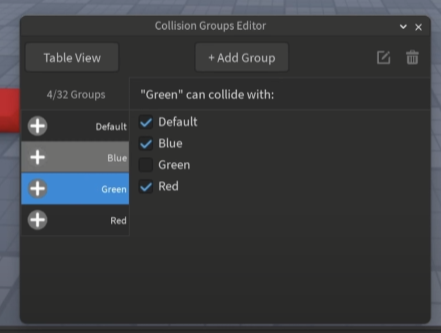
Open the Collision Groups Window: In Roblox Studio, navigate to the 'Model' tab in the ribbon bar. Look for the 'Physics' section and click on 'Collision Groups'. This will open a dedicated panel.
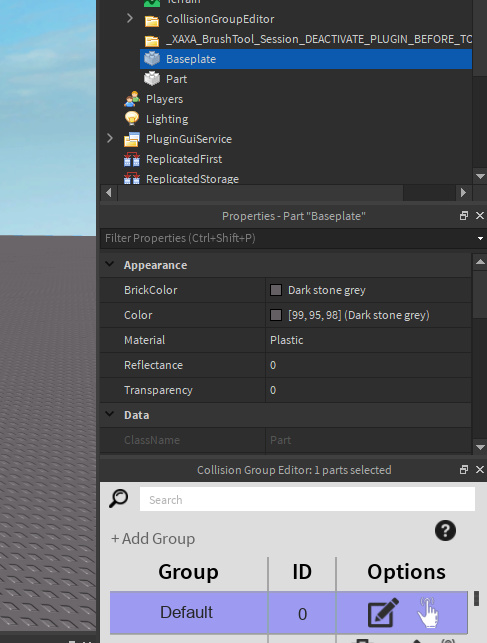
Create New Groups: In the Collision Groups window, you'll see a default group called 'Default'. Click the 'Add Group' button to create new collision groups. Give them descriptive names, like 'Players', 'Enemies', 'Projectiles', 'Scenery', or 'InvisibleWalls'.
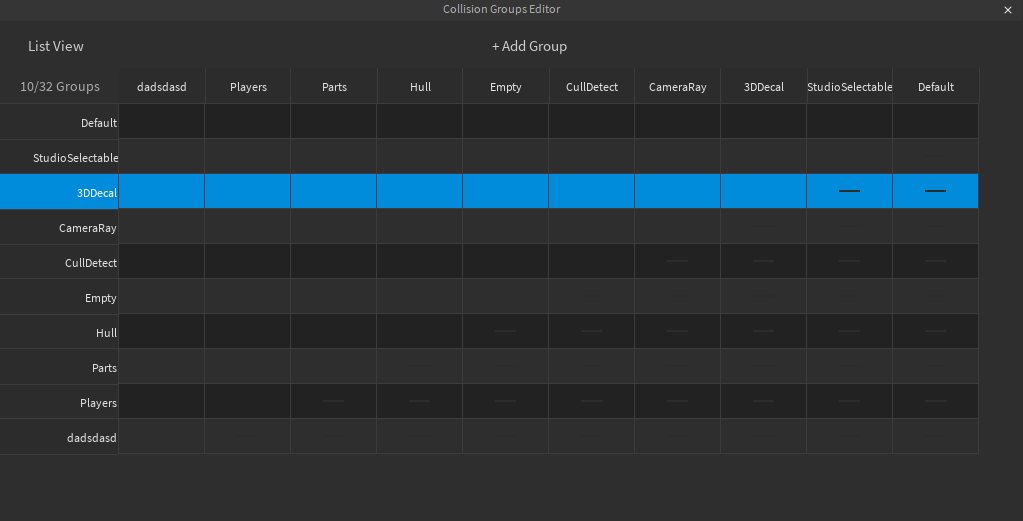
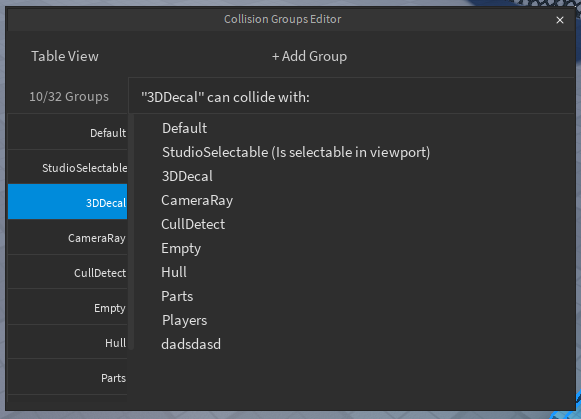
Define Collision Rules: Below your list of groups, you'll find a matrix. This matrix is where the magic happens. Each row and column represents a collision group. A checked box at the intersection of two groups means they WILL collide. An unchecked box means they WILL NOT collide. By default, all newly created groups collide with the 'Default' group and with themselves. Carefully uncheck the boxes for any groups that should pass through each other.
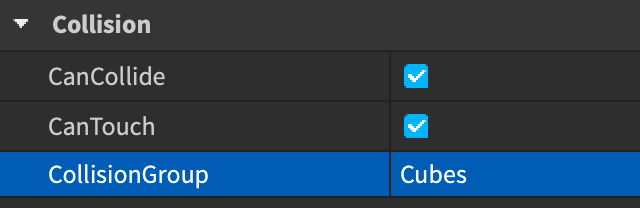
Assign Parts to Groups: Now, select the parts, models, or characters in your game that you want to belong to a specific collision group. In the 'Properties' window (usually found on the right side), locate the 'CollisionGroupId' property. Click on the dropdown menu and select the group you created. You can do this for individual parts, or for entire models by selecting the model and setting its primary part's CollisionGroupId.
Remember to save your changes frequently! This systematic approach ensures that even complex collision logic is manageable and easy to understand.
When Should I Utilize Collision Groups in My Game Development?
Collision groups are incredibly versatile and should be considered for any Roblox game that features complex interactions or aims for high performance. Here are some prime scenarios where they shine:
Player vs. Environment: Make players pass through tall grass, decorative bushes, or non-interactive background elements, improving immersion without visual glitches. You might have a 'Player' group and a 'Foliage' group that don't collide.
Projectile Systems: Ensure bullets or spells only hit valid targets (e.g., enemies, destructible objects) and ignore friendly players, non-colliding visual effects, or the projectile's own owner. A 'Projectile' group might collide only with 'Enemies' and 'Destructibles'.
Interactive Elements: Create specific triggers or puzzle pieces that only interact with certain objects. For example, a 'Key' group might only collide with a 'Lock' group, while ignoring 'Scenery'.
Performance Optimization: In games with many moving parts or physics-intensive mechanics, grouping static environment pieces and making them ignore each other, or separating fast-moving objects from slow ones, significantly reduces the physics engine's workload, leading to a much smoother experience, especially on mobile devices.
Special Abilities/Modes: Implement 'ghost' modes where players can pass through walls, or create objects that temporarily become non-collidable for unique gameplay. A 'GhostPlayer' group wouldn't collide with 'Walls'.
By using collision groups strategically, you can create a far more polished and performant game, which is something the average US gamer, often looking for relaxation and fun after a long day, truly appreciates.
What are Common Mistakes to Avoid with Roblox Collision Groups?
Even seasoned developers can make errors. Understanding common pitfalls can save you hours of debugging and frustration.
Forgetting to Assign Parts: The most frequent mistake! You've set up your groups, but if you don't assign your individual parts or models to them, they'll remain in the 'Default' group and follow its collision rules. Always double-check your 'CollisionGroupId' property for all relevant parts.
Over-Complicating Rules: While powerful, don't create dozens of groups if only a few are needed. Start simple and add complexity as required. Too many groups or an overly intricate matrix can become confusing to manage and debug.
Confusing with CanCollide: Remember, 'CanCollide' is a binary on/off switch for a single part. Collision groups offer selective control. Don't use 'CanCollide = false' for a part if you need it to collide with *some* things but not others; use collision groups instead.
Ignoring the 'Default' Group: The 'Default' group is always there. New parts, by default, belong to it. If you create new groups but don't adjust their collision rules with 'Default', you might get unexpected interactions. Always consider how your custom groups will interact with the 'Default' group.
Lack of Testing: Never assume your collision setup works perfectly. Playtest extensively in different scenarios, especially with multiple players, to catch subtle bugs. What looks good in Studio might behave differently in a live server.
Proactive testing and a clear understanding of your intended interactions will help you avoid these common issues and ensure a smooth development process.
Can Collision Groups Significantly Improve Game Performance?
Absolutely, yes! Collision groups are one of the most effective tools for optimizing physics performance in Roblox. Physics calculations are notoriously resource-intensive, especially in games with many moving or interacting parts. Every time two parts have 'CanCollide' set to true, the physics engine spends CPU cycles determining if they are overlapping and how they should respond.
By using collision groups, you tell the engine,
Control physics interactions, improve game performance, prevent glitches, enable unique gameplay, streamline development, better player experience, easy setup in Roblox Studio.
35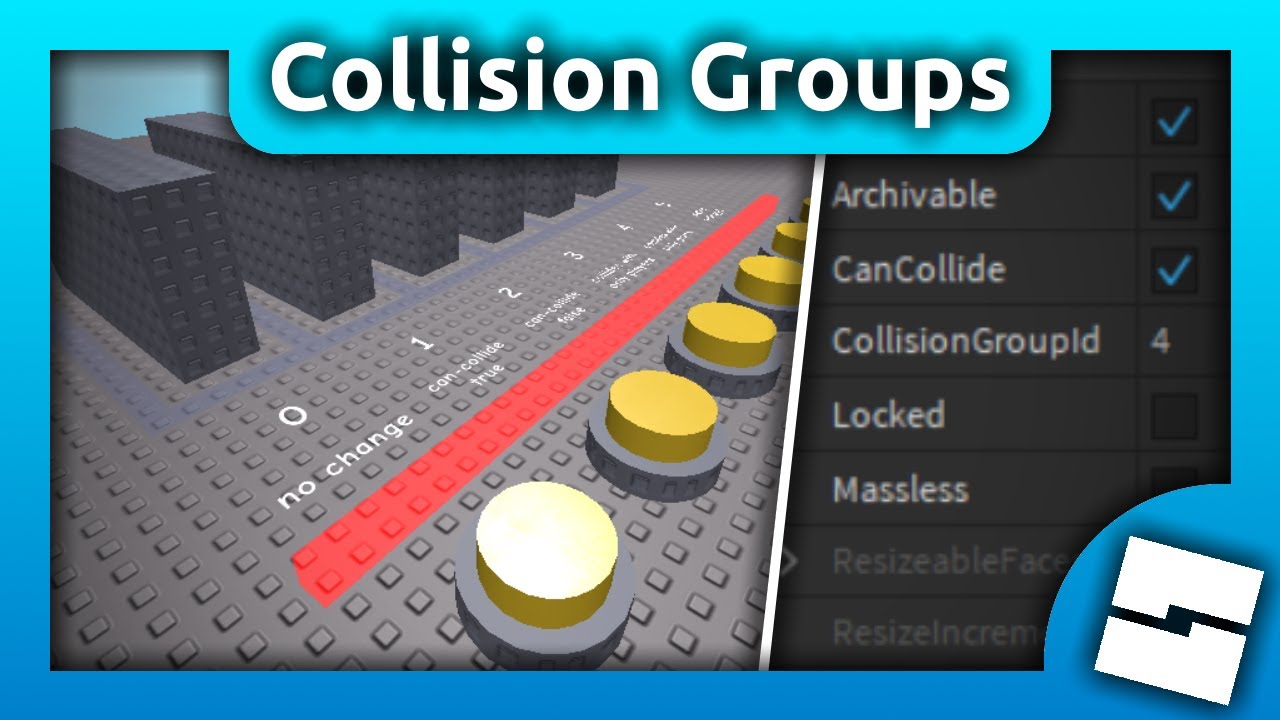


Roblox JToH Tower Building Tutorial 3 Collision Groups YouTube . How Do I Make A Model Not Collide With Another Model Scripting . How To Use NO COLLISION CONSTRAINTS And COLLISION GROUPS On ROBLOX . Announcing Collision Groups Editor Developer Forum . Roblox Studio How To Use Collision Groups YouTube


Outdated Roblox Studio Tutorials Part 50 How To Use Collision . Updates To Collision Groups Page 2 Developer Forum 2 690x391 . ROBLOX STUDIO COLLISION GROUP YouTube . Collision Group Editor Plugin Creations Feedback Developer Forum 2 573x500 . Updates To Collision Groups Page 2 Developer Forum




Collision Groups Roblox What Are Collision Groups By Roblox News . Announcing Collision Groups Editor Developer Forum . How To Use Roblox Collision Groups For Spawning Open World Tycoons . Collision Groups NEW Studio UI Update Platform Usage Support . Collision Groups Roblox Studio YouTube


Collision Groups Editor Not Working Studio Bugs Developer Forum . Collision Groups Manager Plugin UPDATED V1 1 Creations Feedback . Collision Group Editor Plugin Creations Feedback Developer Forum . Roblox Collision Groups 20240513 . My Collision Groups Editor Community Resources Developer Forum Roblox


Updates To Collision Groups Developer Forum Roblox . Introducing The Collision Group . My Collision Groups Editor Community Resources Developer Forum Roblox . Where Are The Collisions Groups Platform Usage Support Developer . Updates To Collision Groups Developer Forum Roblox


Collision Groups Not Working Scripting Support Developer Forum Roblox . Can T Create New Collision Group In Collision Groups Editor Studio . Collision Groups Editor Not Working Studio Bugs Developer Forum . Collisions Roblox Creator Hub BasePart . Collision Groups Editor Not Working Studio Bugs Developer Forum




Player Character Collision Groups And Whitelist Only Doors Roblox . Collision Group Editor Plugin Creations Feedback Developer Forum 2 507x499 . Is . COLLISION ROBLOX INTRO YouTube . Is