Unlocking the full potential of Roblox goes beyond just playing. Many seasoned gamers, balancing work and family, discover the true power lies in mastering in-game commands. This comprehensive guide on how to use commands in Roblox is tailored for busy adults who seek efficiency, fun, and a deeper connection within their favorite virtual worlds. Learn to optimize your gameplay, manage your experience, and interact more effectively, whether you are trying to teleport to friends, adjust server settings, or simply enhance your social interactions. We cut through the noise, offering practical, up-to-date advice to help you get the most out of your limited gaming time. Discover simple tricks that elevate your Roblox journey, making every session more rewarding and enjoyable.
What is the basic way to enter commands in Roblox?
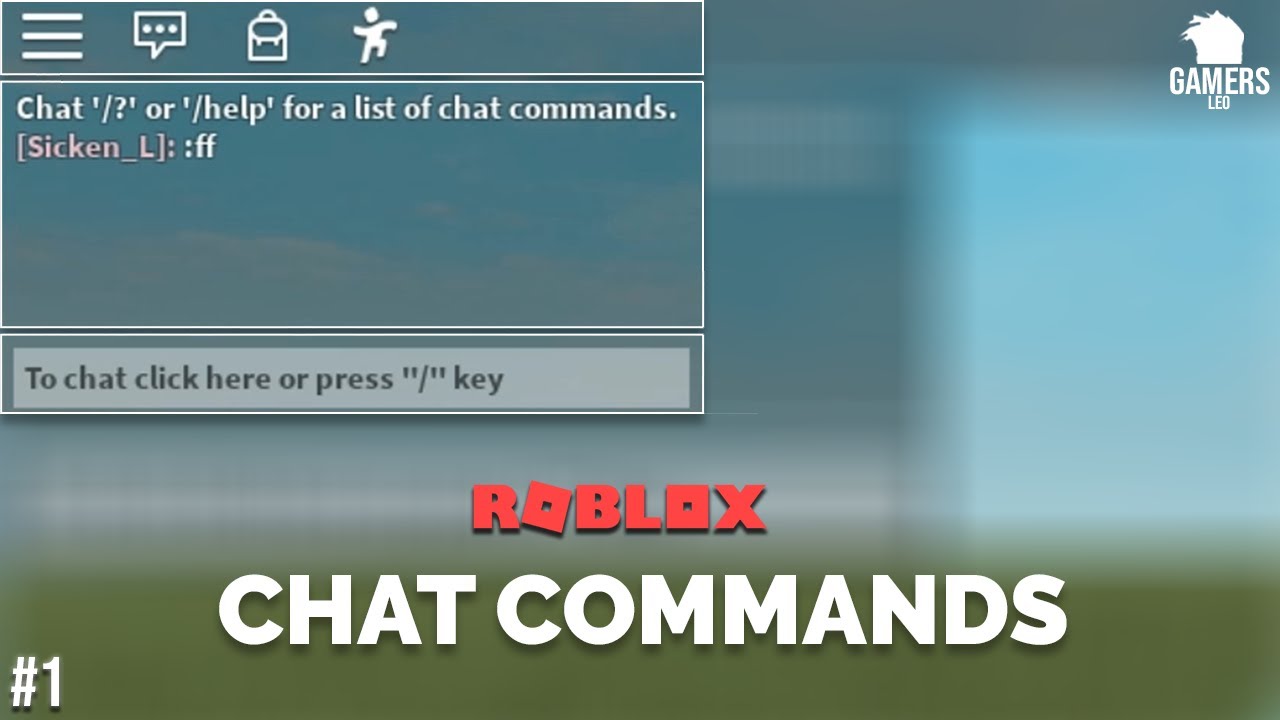
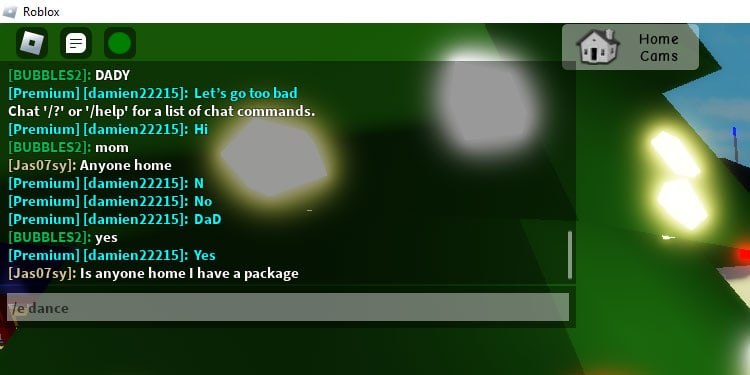
To enter commands in Roblox, you first need to open the chat window. On PC, press the "/" (slash) key on your keyboard. On mobile, tap the chat icon, usually found in the top-left or top-right corner of the screen. Once the chat input box appears, type your command, typically starting with a slash for general chat commands, and then press Enter or the send button. This foundational step applies across almost all Roblox experiences, making it easy to communicate or issue instructions.
Are there universal commands that work in almost any Roblox game?
Yes, there are several universal commands designed for basic interactions that work across many Roblox games. These include "/me [action]" to describe what your character is doing, "/w [playername] [message]" for private whispers, "/e [emote_name]" to perform a dance or other animation, and "/help" to often display a list of available basic commands in that specific game. These are crucial for enhancing social play and overall user experience.
How can I use commands to teleport to a friend in Roblox?
Teleporting to friends using commands is usually possible in games that implement such a feature, often through admin systems or specific game mechanics. In many admin-enabled games, you would use a command like ":teleport [yourname] [friend's name]" or simply ":tp [friend's name]" if you have admin privileges. Without admin, some games have a built-in "/join [friend's name]" command. Always check the game's specific instructions, as this functionality varies greatly.
What are Roblox admin commands, and who can use them?
Roblox admin commands are powerful functions that allow a game owner or designated administrator to control server settings, moderate players, or spawn items within their specific game. Examples include ":kick [playername]", ":ban [playername]", or ":give [playername] [item]". Only players who have been granted admin privileges by the game's creator can use these commands, typically through an installed admin system like HD Admin. They are essential for managing and maintaining a game environment.
How do I find a list of all commands available in a particular Roblox game?
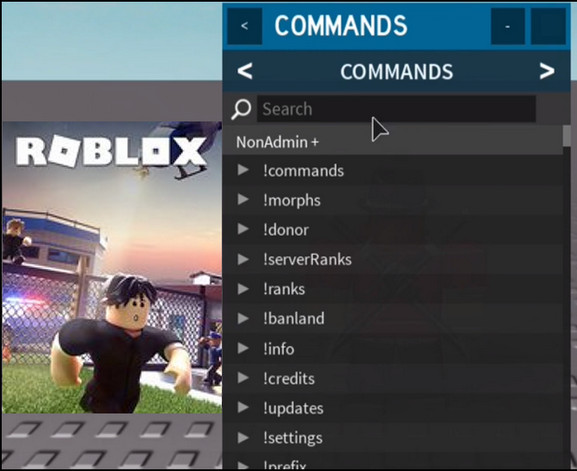
To find a list of commands in a specific Roblox game, your first step should be to type "/help" or ":help" into the chat window. Many games will display a basic list of available player commands. For more extensive or admin-specific commands, check the game's description page on Roblox, its associated social media (like Discord), or community wikis. Developers often provide comprehensive guides, as command functionality can differ significantly from game to game.
Can I use commands on Roblox mobile devices, and is it different?
Yes, you can absolutely use commands on Roblox mobile devices. The process is largely the same: tap the chat icon to open the chat window, type your command starting with a slash, and send it. While the commands themselves function identically to PC, typing on a touchscreen might be slower or require more precision. There are no fundamental differences in command availability or execution between mobile and other platforms, ensuring cross-platform functionality for all gamers.
What should I do if a Roblox command isn't working as expected?
If a Roblox command isn't working, first, double-check for typos; even a single incorrect character can prevent it from executing. Verify you have the necessary permissions, especially for admin commands. Ensure the command is relevant to the specific game you're playing, as not all commands are universal. If still experiencing issues, try rejoining the server, or consult the game's help resources or community forums for troubleshooting tips specific to that experience.
Life can be a delicate balancing act, especially for us adult gamers. Juggling work, family, and daily responsibilities leaves precious little time for unwinding, yet gaming remains that vital escape and social hub. If you are one of the 87% of US gamers who regularly dive into virtual worlds, often for 10 or more hours a week, you know every minute counts. Roblox, with its vast universe of player-created experiences, offers incredible potential for relaxation and skill-building, but are you truly maximizing your time there? Many experienced players, much like yourself, find that understanding how to use commands in Roblox transforms their gameplay from merely participating to actively shaping their experience. This isn't about complex coding; it is about leveraging simple, powerful tools to enhance interaction, optimize performance, and even unlock new social dynamics within the games you love.
We have all faced those moments: wishing we could quickly rejoin a friend, fix a minor glitch, or simply understand what is happening in a bustling game server. This guide is built for you, the busy gamer who values efficiency and fun without the hype. We will demystify Roblox commands, from basic chat functions to more advanced admin capabilities, ensuring you can navigate your virtual adventures with newfound confidence. Get ready to learn practical, up-to-date strategies that address common pain points and make your limited gaming sessions more rewarding. Let us dive in and empower your Roblox journey.
What Are Roblox Commands and Why Should I Use Them?
Roblox commands are specific text inputs you type into the game's chat window to perform various actions, from simple communication to controlling elements within a game. Think of them as shortcuts or direct instructions to the game server. For the average gamer aged around 36, who values efficient and enjoyable gameplay, these commands are incredibly useful. They allow you to quickly interact with your environment, manage your presence, and even troubleshoot minor issues without interrupting your flow. For instance, instead of navigating menus, you can teleport directly to a friend or change your character's animation. Using commands means less time fumbling and more time enjoying the game, whether you are trying to unwind after a long day or connect with friends.
How Do I Access the Chat Window to Enter Commands?
Accessing the chat window in Roblox is straightforward, regardless of whether you are on PC, console, or mobile, reflecting the cross-play realities many adult gamers juggle. On most platforms, you simply press the " / " (slash) key on your keyboard. This will open the chat interface at the bottom of your screen. For mobile users, look for a chat bubble icon, usually located in the top-left or top-right corner, and tap it to bring up the chat. Once the chat is open, you will see a text input box. This is where you will type your commands. Always remember to start most commands with a slash ( / ) to ensure the game recognizes it as an instruction, not just a message to other players. This foundational step is crucial for how to use commands in Roblox effectively.
What Are Universal Roblox Chat Commands for All Players?
Many commands work across almost all Roblox experiences, making them incredibly valuable for enhancing your general gameplay. These are your bread and butter for interaction and quick actions. Here are some of the most common and useful universal commands:
- /help: Displays a list of basic commands available in the current game.
- /me [action]: Describes an action your character is performing to other players (e.g., /me waves hello).
- /w [playername] [message] or /whisper [playername] [message]: Sends a private message to a specific player. This is excellent for coordinating with friends without cluttering public chat.
- /team [message]: Sends a message only to your teammates in games with team functionalities.
- /dance or /e dance: Triggers a default dance animation. Many games have additional emotes that can be triggered with /e [emote_name].
- /respawn: Forces your character to respawn, useful if you are stuck or glitched.
- /clear: Clears the chat history on your screen, which can be helpful if the chat is getting overwhelming.
These universal commands are vital for improving social play and general convenience, helping you stay current with in-game interactions without missing a beat, even when you have limited time to dive deep into game-specific mechanics.
How Can I Use Roblox Admin Commands in My Own Game?
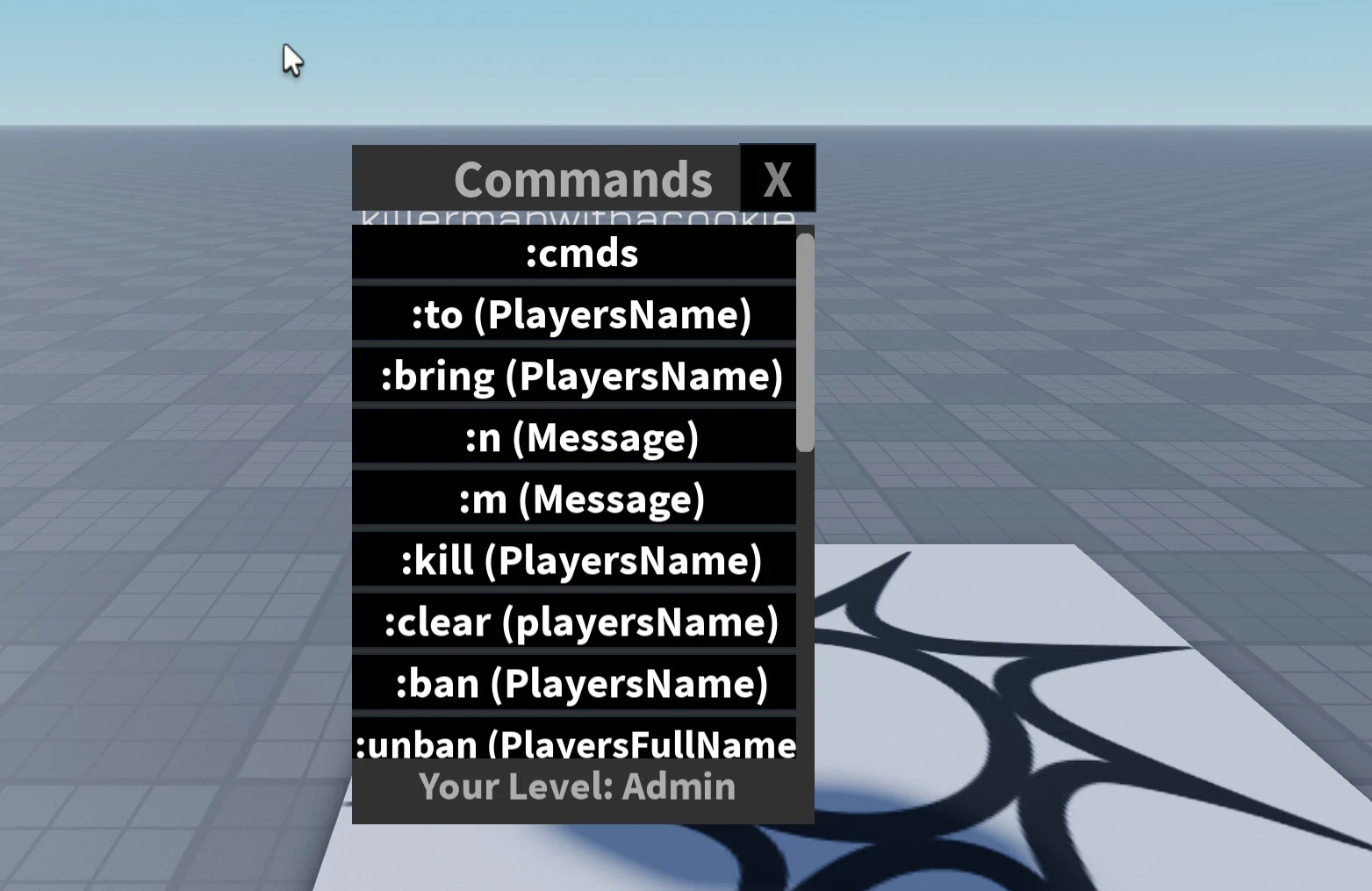
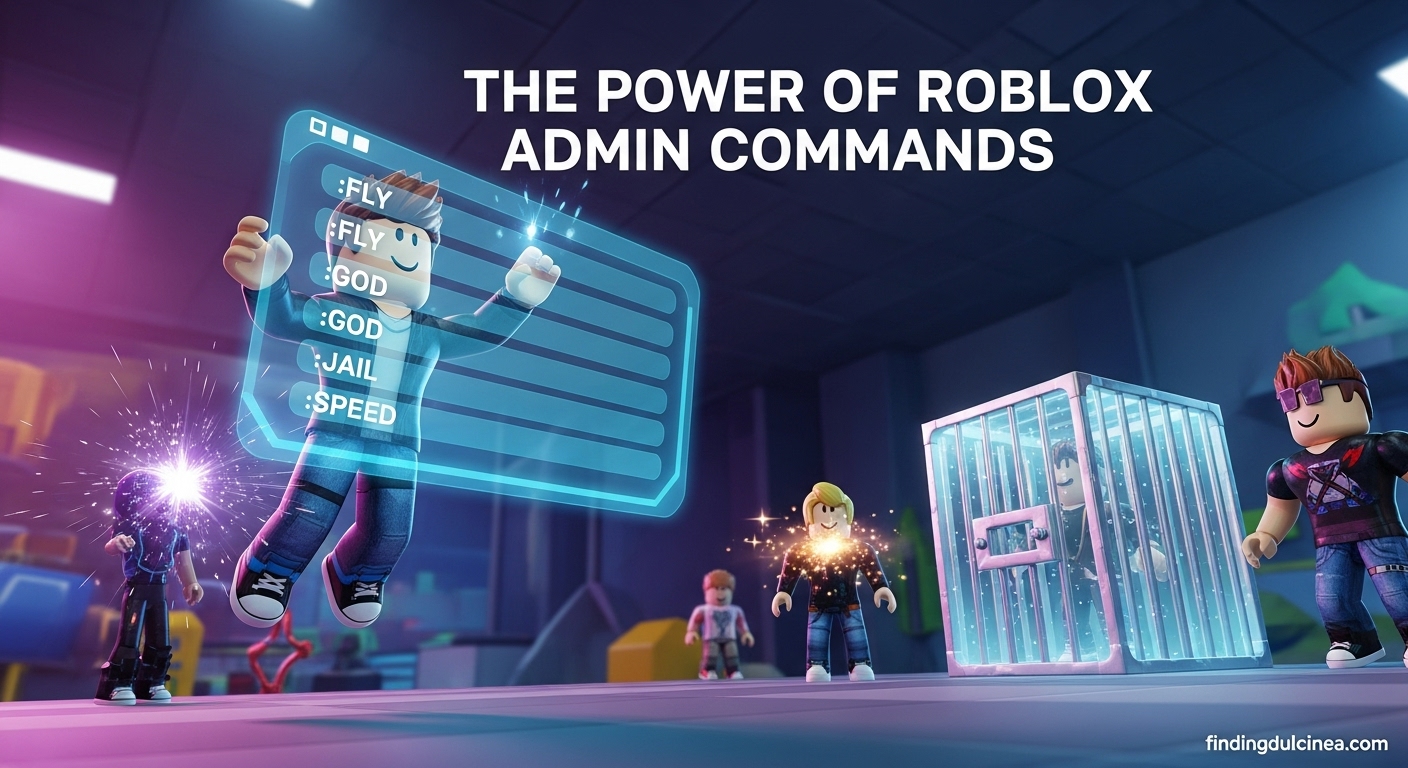
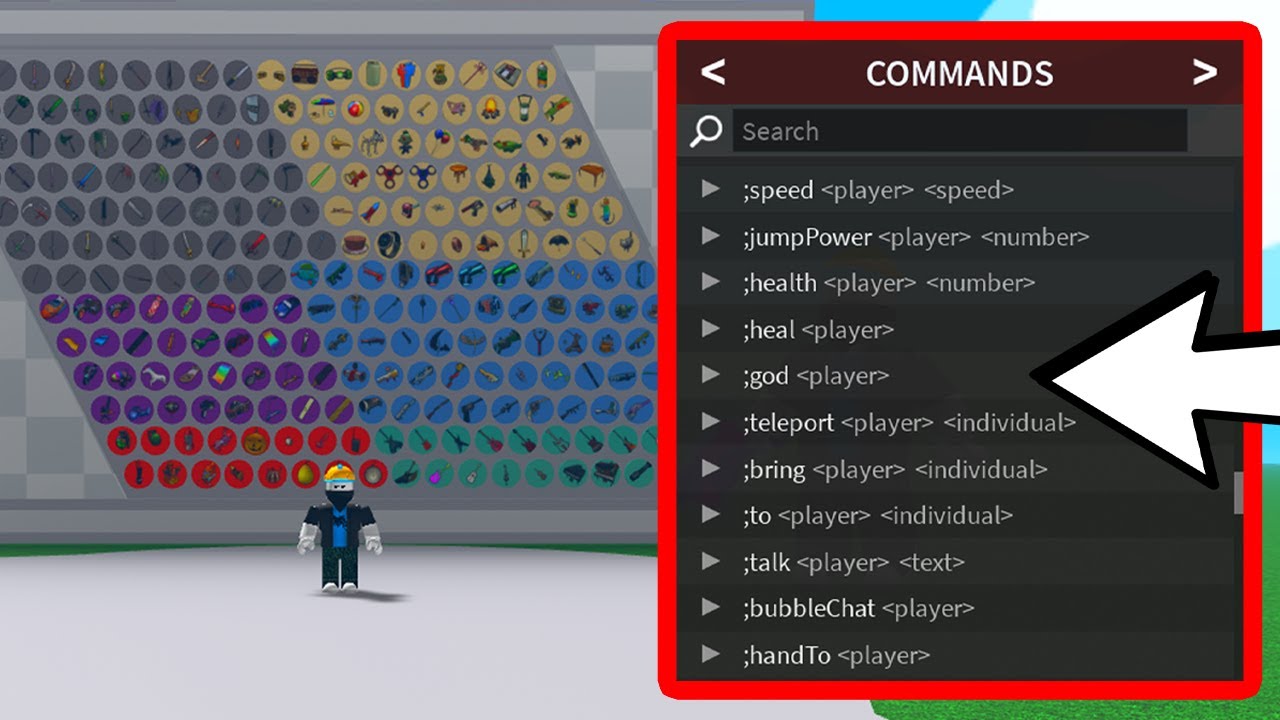
If you are a Roblox game developer or frequently play on private servers you own, admin commands unlock a powerful layer of control. These commands allow you to moderate players, change game settings, and spawn items, offering immense flexibility. To use admin commands, your game must have an admin system installed (e.g., Kohl's Admin House, HD Admin). Once installed and you have the appropriate admin privileges (usually configured by the game owner), you can access them. Common admin commands include:
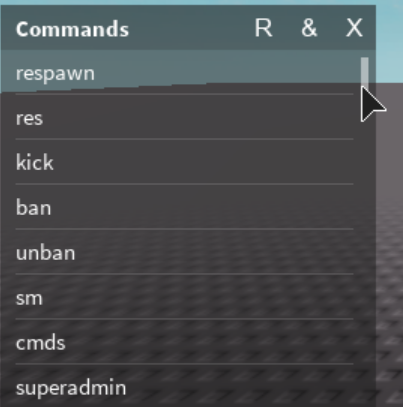
- :kick [playername]: Removes a player from the server.
- :ban [playername]: Prevents a player from rejoining the server.
- :teleport [playername] [destination playername/coordinates]: Moves a player to a different location or to another player.
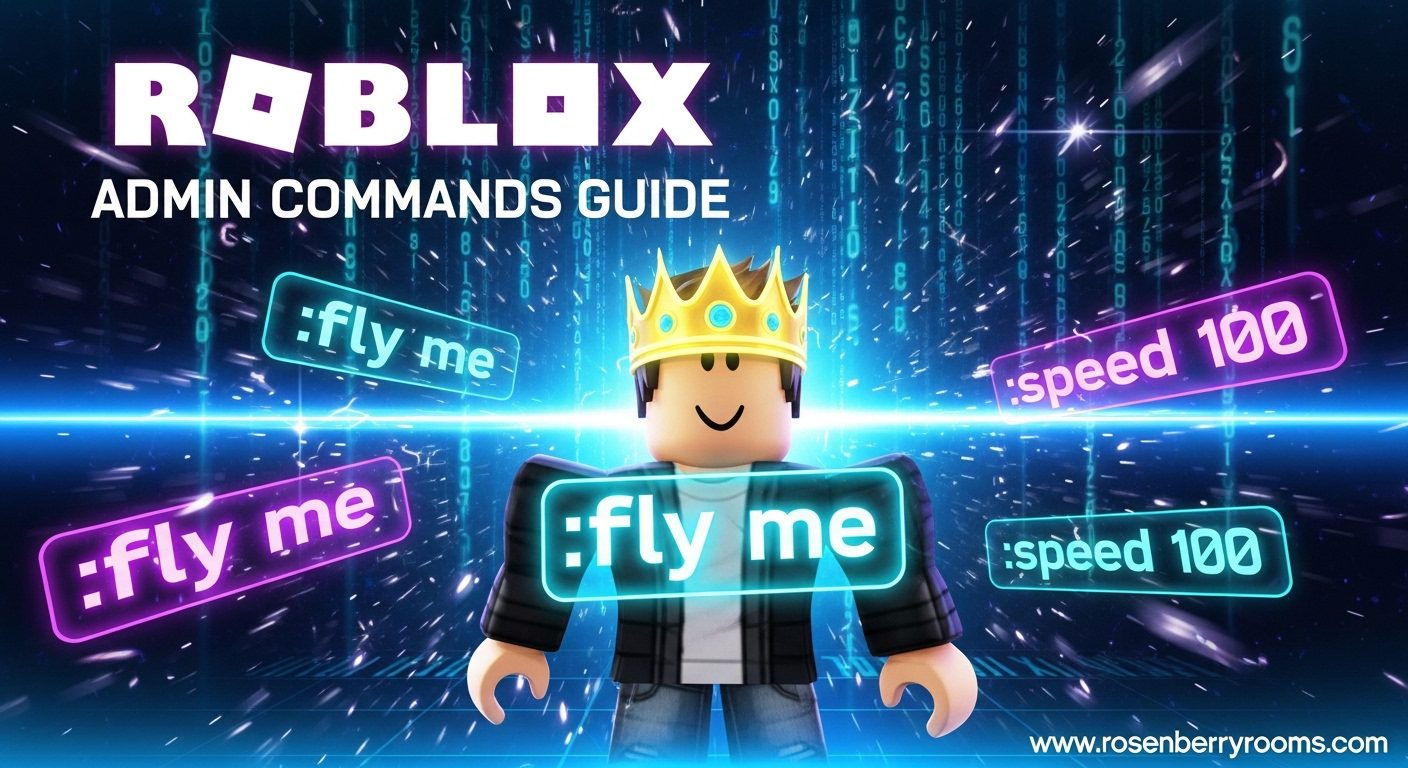
- :speed [playername] [speed_value]: Changes a player's movement speed.
- :fly [playername]: Allows a player to fly.
- :bring [playername]: Teleports a player to your location.
- :health [playername] [value]: Sets a player's health.
Remember, admin commands are game-specific and require proper setup. Always use them responsibly to maintain a fun and fair environment for everyone, particularly when managing a social gaming space for friends and family.
Are There Specific Game Commands I Should Know About?
Absolutely! Beyond universal chat commands and admin tools, many popular Roblox games feature their own unique set of commands designed to interact with that specific experience's mechanics. These can range from role-playing actions to specific item spawns or unique character abilities. For example, in Adopt Me!, you might find commands related to pet interactions, while in a tycoon game, commands could help manage your base. The best way to discover these game-specific commands is usually:
- Checking the game's description page.
- Looking for in-game help menus (often activated by a specific button or a universal command like /help).
- Asking other players in the game or on the game's official Discord server (a popular social hub for 2026 gamers).
- Searching online forums or fan wikis for the specific game.
Learning these can significantly enhance your experience and give you an edge, especially in games that require intricate interactions or offer hidden features through commands. This focus on specific game knowledge is key for skill-building and optimizing performance within your favorite titles.
How Do I Troubleshoot Common Command Issues in Roblox?
Even seasoned gamers encounter hiccups, and Roblox commands are no exception. If you are having trouble with how to use commands in Roblox, consider these common troubleshooting steps:
- Check for Typos: The most frequent issue is a simple misspelling. Commands are case-sensitive sometimes, and even a missing space can break them. Double-check your input.
- Verify Syntax: Ensure you are using the correct format, especially starting with a "/" for chat commands or ":" for admin commands, followed by the right parameters (e.g., player name, value).
- Permissions: For admin or game-specific commands, confirm you have the necessary permissions. Are you the game owner? Do you have admin privileges?
- Game Specificity: Is the command universal, or is it specific to a game that might not support it? Always check the game's documentation.
- Server Status: Occasionally, server lag or issues can prevent commands from registering. Try again after a short wait or rejoin the server.
- Parental Controls/Chat Filters: If a command seems to be censored or not appearing, check Roblox's chat filters or parental control settings, which can sometimes interfere with certain keywords.
- Outdated Admin Systems: If you are using an older admin system in your game, it might be incompatible with Roblox's current updates. Consider updating or switching to a more modern admin tool.
These steps can often resolve frustrations quickly, allowing you to get back to enjoying your game time without unnecessary delays.
Can Commands Help Me Socialize Better in Roblox?
Absolutely! Social play is a huge draw for many gamers, and commands are a powerful tool for enhancing social interactions on Roblox, a platform where social gaming thrives. In 2026, social dynamics, whether in-game or on platforms like Discord, are central to the gaming experience. Commands facilitate quick, clear communication and expressive actions. For example, using `/whisper` allows private conversations, perfect for strategy with friends or discreet chats during a busy event. Emote commands like `/e wave` or `/dance` add personality and non-verbal communication, making interactions more dynamic and fun. You can quickly express feelings or reactions without typing lengthy messages. In games with team functions, `/team [message]` ensures your communication is targeted and effective, avoiding confusion. These small but significant actions foster stronger connections and make your time with friends in Roblox more engaging and memorable, fitting seamlessly into a life where connection is valued.
What Are Some Advanced Tips for Mastering Roblox Commands?
For those looking to truly master how to use commands in Roblox and elevate their gameplay, consider these advanced tips:
- Create a "Cheat Sheet": Keep a small document or sticky note with your most frequently used game-specific commands. This saves time and minimizes interruptions.
- Experiment in Private Servers: If you own a game or have access to a private server, use it as a sandbox to test out commands without impacting other players.
- Learn Aliases: Some admin systems allow you to create shorter aliases for longer commands (e.g., creating ":tp" for ":teleport"). This can drastically speed up execution.
- Combine Commands with Scripts: For the more tech-savvy, understanding how commands interact with simple in-game scripting can unlock even greater customization and automation. This is delving into developer territory but offers peak performance optimization.
- Stay Updated: Roblox and individual game developers frequently update their experiences. What worked yesterday might be different today. Follow developer announcements and community forums to stay current.
- Utilize Developer Console: While not chat commands, the F9 Developer Console (on PC) offers advanced debugging tools and error logs that can help you understand why a command might not be working or diagnose performance issues, providing deeper insight into game mechanics.
These strategies empower you to not just use commands, but to integrate them seamlessly into your playstyle, optimizing your valuable gaming time.
How Do Commands Relate to Roblox's Mobile Experience?
Roblox's mobile dominance means many gamers are playing on phones or tablets, and commands are fully supported across these platforms. The core functionality remains the same: tap the chat icon, type your command starting with a slash, and hit send. However, the mobile experience does come with a few nuances. Typing quickly can be trickier on a touchscreen, so focus on memorizing shorter, frequently used commands or utilize predictive text if available. Some complex admin commands that require precise coordinates might be more cumbersome. Despite these minor challenges, commands on mobile are just as powerful for quick communication, emotes, and interacting with game mechanics. They are essential for a smooth, multi-platform gaming experience, allowing you to maintain social connections and gameplay efficiency whether you are at your desk or on the go.
Mastering how to use commands in Roblox is a game-changer for any busy adult gamer. It is about taking control of your virtual experience, optimizing your time, and deepening your enjoyment, whether you are unwinding after work or connecting with friends and family. By understanding universal chat commands, leveraging admin tools in your own games, and exploring game-specific functions, you are not just playing Roblox; you are truly engaging with its vast potential. These simple text inputs transform casual play into a more efficient, interactive, and personalized adventure. So, dive in, experiment, and make every minute count.
What is your biggest gaming challenge in Roblox? Comment below and let us help each other level up!
FAQ Section
Are Roblox commands free to use?
Yes, most standard chat commands like /me or /whisper are built into Roblox and free to use. Admin commands for private servers require an admin system, which may be a one-time purchase from the Roblox marketplace or free if provided by the game creator.
Can I create my own commands in Roblox?
As a player, you cannot create universal commands. However, if you are a game developer, you can program custom commands into your own Roblox experiences using scripting (Lua) within Roblox Studio to add unique functionalities.
Do Roblox commands work on all devices?
Yes, Roblox commands are generally designed to work across all supported devices, including PC, Mac, mobile (iOS/Android), Xbox, and PlayStation. The method to open the chat window might vary slightly per platform, but the commands themselves function consistently.
Are there any secret Roblox commands?
There are no universally "secret" commands hidden by Roblox itself. However, individual game developers might implement easter egg commands or undocumented features within their specific games. Discovering these often comes from community exploration.
How do I know if a game supports admin commands?
Check the game's description for mentions of admin systems. Often, popular admin systems like HD Admin are listed. Alternatively, try typing common admin commands (e.g., :cmds, :help) in the chat; if a response appears, it likely has admin support.
What if a command isn't working after I type it correctly?
Ensure you have the correct permissions (especially for admin commands), check for server lag, or verify if the command is still valid for that specific game. Sometimes, an older game might not have updated its command functions.
Can commands get me banned from Roblox?
Using standard or game-specific commands correctly will not get you banned. However, using commands from unauthorized third-party exploits or abusing admin commands to harass other players can lead to warnings, suspensions, or permanent bans.
Master Roblox chat commands, understand admin panel access, improve game interaction, troubleshoot common command issues, enhance social play, discover game-specific commands, and optimize your Roblox experience.
35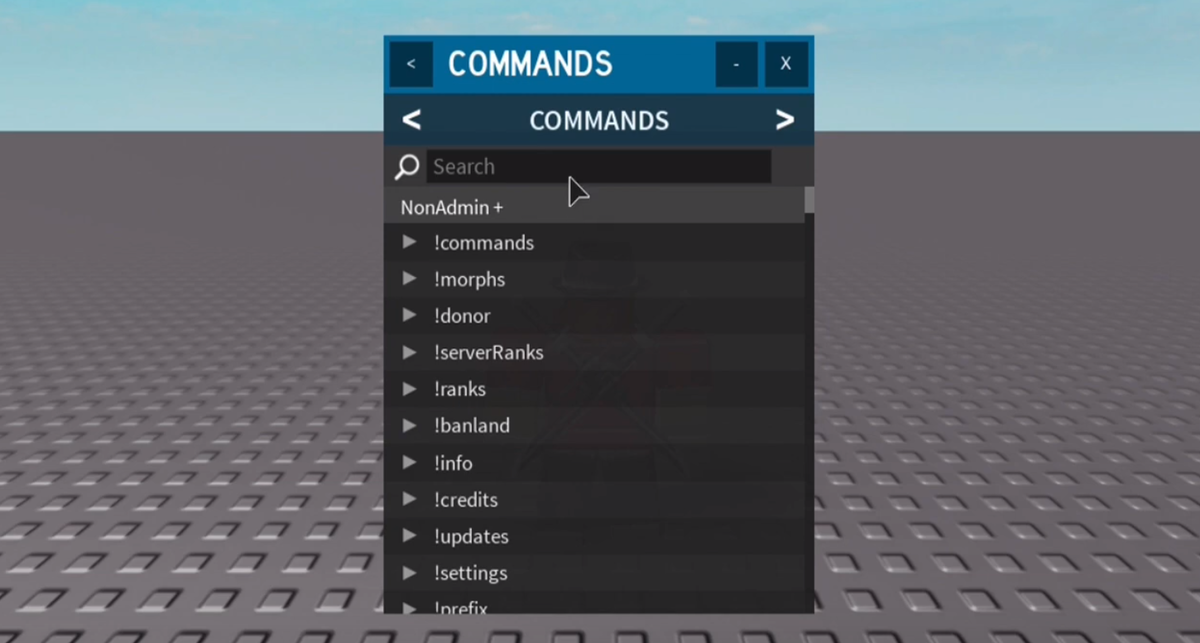

Roblox Commands The Ultimate Guide CodaKid Roblox Commands 3 . Mastering Roblox Commands The Ultimate 2025 Guide To Power Control . Roblox Admin Script Mobile Youtube Image6 . How To Use Roblox Admin Commands 200 Commands 2026 How To Use Roblox Admin Commands . How To Make Admin Commands Roblox Tutorial YouTube




Mastering Roblox Commands A Guide For Players Mastering Roblox Commands A Guide For Players And Developers . How To Add Admin Commands In Roblox Studio YouTube . How To Use Roblox Admin Commands May 2026 Full List Roblox Admin Commands . How To Open Command Bar In Roblox Studio 2025 YouTube . Roblox S New Chat Rules Explained January 2026 Roblox New Chat Rules



How To Check Command History In Vscode Dibujos Cute Para Imprimir . Roblox List Of ALL Commands And How To Use Them 1 . Guide To Roblox Command For Game Admins Featured 2048x1143 . How To Type Commands In Roblox Becoming A Command Master Ultimate How To Type Commands In Roblox . This Is How To Use Admin Commands In Roblox YouTube


All Roblox Admin Commands Latest Version Updated List 2022 Roblox Admin Commands List . All Commands PART 2 Roblox Catalog Avatar Creator YouTube Hqdefault . A Guide On How To Use Roblox Gift Cards Gamezebo How To Get Admin Commands In 99 Nights In The Forest . Unix Commands To Check Server Logs For Security . How To Use Commands In Grace Roblox 3750x1962



Admin Scripts Roblox . Roblox Me Command What Does It Actually Do NoFilter. Roblox Grace All Commands How To Use Commands In Grace Roblox YouTube . How To Add Commands In Autocad Aid2152132 V4 1200px Add Admin Commands To Your Roblox Place Step 12 . Get Your Groove On Roblox Dance Commands Dance Commands


How To Use Command Bar Roblox YouTube . Use Command Bar Command Line To Build Games Roblox Studio For New . All Admin Console Commands In Steal A Brainrot Roblox TechWiser How To Use Admin Console Commands In Steal A Brainrot. How To Message On Roblox 2026 A Quick Guide . Roblox Commands Admin All Roblox Admins SDYEM


How To Use Commands In Custom Match Roblox Bedwars Step By Step YouTube . How To Set Up CmdR Admin Commands In Roblox OUTDATED YouTube . Roblox Console Commands Ultimate Guide For Mobile PC TikTok Img. How To Teleport With Chat Commands Roblox Studio Guide YouTube . How To Message On Roblox 2026 A Quick Guide