Unlocking the full potential of Roblox shadows is crucial for gamers seeking an immersive visual experience without sacrificing performance. This comprehensive guide delves into every aspect of Roblox shadow settings from understanding their impact on frame rates to advanced optimization techniques. Whether you are a casual player looking to enhance your game's aesthetics or a competitive gamer striving for peak FPS this article provides actionable insights and practical tips. Discover how to fine tune your graphics settings troubleshoot common shadow related issues and leverage shadows for a more engaging and visually stunning Roblox adventure. We cover everything from PC to mobile optimization ensuring a smooth experience across all platforms. Stay current with the latest Roblox rendering trends and optimize your setup like a pro balancing visual fidelity with buttery smooth gameplay in 2026.
How can I optimize Roblox shadows for maximum FPS?
To optimize Roblox shadows for maximum FPS, first navigate to your in-game settings and set the Graphics Quality slider to a lower value, ideally between 1 and 3. In games that allow specific lighting adjustments, choose 'Compatibility' or 'Voxel' lighting technology over 'ShadowMap' or 'Future', as these are less resource-intensive. Consider playing in full-screen mode and ensure all unnecessary background applications are closed to free up system resources. Additionally, keep your graphics drivers updated regularly for the best performance.
What graphics settings impact shadows most in Roblox?
The Graphics Quality slider is the primary setting impacting shadows in Roblox, directly controlling their resolution, draw distance, and overall complexity. The 'Lighting Technology' chosen by developers within a specific game (e.g., Future, ShadowMap, Voxel) also significantly affects shadow realism and performance demands. Other settings like 'Edit Quality Level' in some experiences can toggle shadow details. For players, these are the main levers; for developers, individual object properties like 'CastShadow' offer granular control.
Are Roblox shadows available on all platforms?
Roblox shadows are generally available across most platforms, including PC, Mac, and mobile devices (iOS, Android), but their quality and complexity vary significantly. PC and Mac users with dedicated graphics cards typically experience the most advanced and realistic shadows. Mobile devices, due to hardware limitations, often render simplified or lower-resolution shadows, with the game automatically scaling settings to prioritize performance and battery life. Console versions of Roblox also feature shadows, optimized for their respective hardware.
How do developers utilize shadows for immersion in Roblox?
Roblox developers use shadows to create depth, realism, and atmosphere, significantly enhancing immersion. By carefully placing light sources and configuring shadow properties, they can: emphasize environmental details, guide player attention, create a sense of mystery or drama, and improve spatial awareness in complex builds. Dynamic shadows from moving objects or characters make the world feel more alive, contributing to a more engaging and believable game experience. Advanced lighting technologies like 'Future' enable highly realistic global illumination and dynamic shadows.
What are the common causes of flickering shadows in Roblox?
Flickering shadows in Roblox are often caused by outdated graphics drivers, which can lead to rendering conflicts. Another common culprit is insufficient GPU power, where the system struggles to render complex shadows at high settings, resulting in instability. Incorrect or conflicting graphics settings within Roblox or the game itself can also contribute. Sometimes, Z-fighting (where two surfaces occupy the same space) can cause visual artifacts, including flickering shadows, particularly in poorly constructed game environments. Keeping drivers updated and adjusting in-game quality settings are primary solutions.
Does enabling shadows affect network latency in Roblox?
Enabling shadows in Roblox primarily affects your local system's graphical processing unit (GPU) and central processing unit (CPU), not your network latency. Shadows are rendered client-side, meaning the calculations and drawing happen entirely on your device. Your internet connection speed or ping to the Roblox servers typically remains unaffected by whether shadows are on or off. However, if your system struggles with shadow rendering, leading to severe FPS drops, it might *feel* like latency due to unresponsive controls, but it's a local performance issue, not a network one.
Are there any third-party tools to enhance Roblox shadows?
While Roblox Studio offers extensive official tools for developers to create and optimize shadows, for players, direct third-party tools to 'enhance' shadows beyond what the in-game settings allow are generally discouraged or nonexistent. This is primarily due to Roblox's strict anti-tampering measures to ensure a fair and secure environment. Any unauthorized modification to the game client could lead to account penalties. The best way for players to enhance shadows is by optimizing their in-game graphics settings, ensuring up-to-date drivers, and upgrading their hardware if possible, all within the official Roblox ecosystem.
As busy adult gamers, we know the struggle is real. You've just finished a long day, the kids are finally asleep, and you're ready to dive into some Roblox fun, perhaps build a new world or dominate in a fast-paced battle. But then, you're faced with the age-old dilemma: do you crank up the graphics for stunning visuals, only to suffer from choppy frame rates, or do you strip everything back for a smooth experience that feels a little less immersive? It's a balance we constantly seek, especially when limited gaming time means every moment counts. Recent data shows that 87% of US gamers play regularly, often dedicating 10+ hours a week, and a significant portion of that time is spent balancing life's demands with their passion for gaming. This guide on Roblox shadows is designed to help you conquer that very challenge, offering practical solutions to optimize your game's appearance and performance without having to choose one over the other. We'll explore how to get the best out of Roblox shadows, ensuring your gaming sessions are both visually rich and incredibly smooth, allowing you to relax, have fun, and even build skills in a visually optimized environment.
Roblox has evolved into a powerhouse platform, and its visual capabilities, especially with advanced rendering features like shadows, can transform a simple game into an incredibly immersive experience. However, these enhancements often come with a performance cost, particularly for those of us not running top-tier gaming rigs or playing on mobile devices, which now account for a dominant share of gaming. This article will provide a deep dive into Roblox shadows, from understanding what they are to masterfully configuring them for your specific setup. We'll cut through the hype and give you actionable steps to enhance your gameplay, troubleshoot common issues, and ensure your Roblox experience is as good as it can be, balancing your desire for stunning visuals with the need for reliable performance. Let's get started on making your Roblox worlds look their best without slowing you down.
What Exactly Are Roblox Shadows and Why Do They Matter?
Roblox shadows are sophisticated visual effects that add depth, realism, and immersion to games by simulating how light interacts with objects. They're not just a cosmetic feature; dynamic shadows can dramatically alter the perception of a game world, making environments feel more grounded and lifelike. When enabled, Roblox calculates how light sources cast shadows from 3D objects onto surfaces, creating a more believable scene. This matters because shadows are a primary contributor to a game's visual fidelity, making it easier to gauge distances, understand spatial relationships, and even spot opponents in competitive games. Without them, worlds can appear flat and artificial, diminishing the overall player experience.
For many gamers, particularly those balancing family and work, the visual appeal of a game contributes significantly to the relaxation and escape it provides. Better shadows mean a more immersive world to get lost in. However, generating these realistic effects requires significant processing power from your CPU and GPU. Understanding how shadows work is the first step in optimizing your Roblox experience, allowing you to make informed decisions about your graphics settings and ensuring you get the best visual quality without crippling your frame rate, especially on older hardware or budget-friendly setups.
How Do Roblox Shadows Impact Game Performance and FPS?
The impact of Roblox shadows on your game's performance and Frames Per Second (FPS) can be substantial. Shadows are one of the most resource-intensive graphical features. Each dynamic light source and object casting a shadow requires complex calculations in real-time. This includes determining shadow maps, rendering shadow textures, and applying them correctly to the scene. The more objects, lights, and complex geometries in a game, the greater the computational load. This is particularly noticeable in graphically rich games or during intense action sequences where many elements are in motion.
For gamers on a tight schedule, every dropped frame can detract from the fun and competitive edge. High shadow quality settings can lead to significant FPS drops, especially on integrated graphics or older GPUs. This means choppier gameplay, slower response times, and a less enjoyable experience overall. Conversely, reducing or disabling shadows can provide a substantial FPS boost, making the game feel much smoother and more responsive. Finding the right balance is key to ensuring that your gaming sessions are fluid and enjoyable, allowing you to focus on the game itself rather than technical frustrations.
Can I Customize Roblox Shadow Settings and What Are the Options?
Yes, you absolutely can customize Roblox shadow settings, although the level of control varies depending on whether you're a player or a developer. For players, the primary control lies within the in-game graphics settings. These settings typically include:
- Graphics Mode: Often defaulting to Automatic, which scales quality based on your hardware. Manual mode gives you more control.
- Graphics Quality Slider: This is your main lever. Moving it higher increases overall visual fidelity, including shadow resolution and draw distance, but also demands more from your system. Moving it lower reduces these qualities, boosting performance.
- Edit Quality Level: Some games or experiences might offer specific in-game settings that allow you to toggle certain visual elements, including shadows, independently.
For Roblox developers, the customization options are far more extensive. They can control specific properties of lights and objects that affect shadows:
- Shadow Map Resolution: Determines the crispness of shadows. Higher resolutions look better but consume more resources.
- Shadow Fade Distance: How far shadows are rendered before they disappear or become less distinct.
- CastShadow property: Developers can toggle whether individual parts or models cast shadows, allowing for granular optimization.
- Lighting Technology: Different lighting technologies (e.g., Future, Voxel, ShadowMap, Compatibility) have varying capabilities and performance impacts regarding shadows. Future offers the most advanced shadows but is also the most demanding.
These options allow both players and creators to tailor the shadow experience, from subtle enhancements to full photorealism, ensuring that games can run smoothly across a wide range of hardware while still looking great.
What Are the Best Roblox Shadow Settings for Optimal Performance and Visuals?
Finding the sweet spot between performance and visuals with Roblox shadows largely depends on your specific hardware and your priorities as a gamer. Many adult gamers juggle limited time, so optimizing for a smooth, frustration-free experience is often paramount.
For Balanced Performance and Visuals (Mid-Range PCs):
- Graphics Quality: Start around 5-7 on the manual slider. This usually provides decent shadow detail without excessive performance hits.
- Lighting Technology (if applicable in specific games): 'ShadowMap' is often a good compromise between visual quality and performance. 'Future' offers the best visuals but demands powerful hardware.
- Resolution: Play at your monitor's native resolution but consider dropping it slightly if FPS is still an issue.
For Maximum FPS (Older PCs, Competitive Play):
- Graphics Quality: Set to 1-3 on the manual slider, or even 0 to disable shadows entirely if performance is critical. Many competitive players prioritize frames over elaborate visuals to gain an edge.
- Lighting Technology: 'Compatibility' or 'Voxel' generally offer the best performance, as they have simpler shadow rendering.
- Disable unnecessary effects: Turn off Bloom, Depth of Field, and other post-processing effects that can also consume resources.
For Best Visuals (High-End PCs):
- Graphics Quality: Max out the slider to 10.
- Lighting Technology: Set to 'Future' for the most realistic and advanced dynamic shadows.
- Higher Resolution: Consider playing at 1440p or even 4K if your monitor and GPU support it.
Always test your settings in a game with similar graphical demands to what you usually play. A small tweak can make a big difference, especially for those 60% of gamers who find relaxation and fun in an optimized experience.
How Can I Troubleshoot Common Roblox Shadow Glitches and Issues?
Encountering shadow glitches in Roblox can be frustrating, especially when you're trying to unwind. Common issues include flickering shadows, jagged edges, shadows appearing and disappearing erratically, or shadows not rendering at all. Here’s a troubleshooting guide to help you fix these common pain points:
Update Your Graphics Drivers: This is often the first and most effective step. Outdated drivers are a frequent cause of graphical anomalies. Visit your GPU manufacturer's website (NVIDIA, AMD, Intel) to download and install the latest drivers. This can resolve many rendering bugs and improve overall performance.
Adjust In-Game Graphics Settings:
- Try lowering your 'Graphics Quality' slider in Roblox settings. Sometimes, your system struggles to render shadows at higher settings, leading to glitches.
- Switching 'Graphics Mode' from Automatic to Manual and then back to Automatic, or toggling V-Sync, can sometimes reset rendering states.
- Experiment with different 'Lighting Technologies' in specific games if available. 'ShadowMap' or 'Voxel' might be more stable for your hardware than 'Future'.
Check for Roblox Updates: Ensure your Roblox client is up to date. The platform regularly rolls out updates that include bug fixes and performance improvements. A simple restart of the Roblox player often triggers an update.
Clear Roblox Cache: Corrupted cache files can sometimes cause graphical issues. To clear the cache:
- Press Win + R, type %temp% and hit Enter.
- Delete the 'Roblox' folder or any folders related to Roblox (e.g., 'RobloxStudio').
- Empty your Recycle Bin.
Verify System Requirements: Confirm that your PC meets the minimum system requirements for Roblox, especially for games that use advanced shadow rendering. While Roblox is generally lightweight, highly detailed experiences can be demanding.
Disable Third-Party Software: Overlays (like Discord overlay, GeForce Experience overlay) or other background applications can sometimes conflict with Roblox's rendering. Try disabling them temporarily to see if the issue resolves.
Reinstall Roblox: As a last resort, a clean reinstallation of Roblox can fix deep-seated issues that other troubleshooting steps couldn't. Uninstall Roblox completely, restart your computer, and then download and reinstall it from the official website.
Addressing these issues will help you get back to enjoying your game, ensuring your precious gaming time is spent playing, not troubleshooting.
Do Mobile Devices Handle Roblox Shadows Differently Than PCs?
Absolutely, mobile devices handle Roblox shadows quite differently than PCs, primarily due to fundamental hardware and power limitations. Mobile CPUs and GPUs are designed for efficiency and lower power consumption, meaning they have significantly less raw processing power compared to their desktop counterparts. This directly impacts how complex graphical features, including dynamic shadows, can be rendered in real-time.
- Simplified Rendering: Roblox on mobile often employs more optimized or simplified shadow rendering techniques. This might mean lower shadow map resolutions, shorter shadow draw distances, or even pre-baked shadows in certain static environments rather than fully dynamic ones.
- Automatic Quality Scaling: The Roblox mobile client is highly adept at automatically scaling graphics quality based on the device's capabilities to maintain a playable frame rate. This often means shadows are among the first features to be scaled down or disabled if performance drops.
- Battery Life: Rendering complex shadows is power-intensive. Mobile devices prioritize battery life, so pushing high-fidelity shadows can drain your battery rapidly, which is undesirable for on-the-go gaming.
- Screen Size: The smaller screen size of mobile devices means that subtle shadow details are often less noticeable than on a large PC monitor, making aggressive optimization for performance more justifiable.
For the millions of gamers who primarily play Roblox on mobile (a significant trend this month), understanding these differences is crucial. It means accepting that high-fidelity PC-level shadows might not be achievable, but also knowing that the platform is designed to provide the best possible experience within those mobile constraints, ensuring smooth social play and skill-building on the go.
Is Enabling Roblox Shadows Always Worth It for Visual Quality?
Enabling Roblox shadows isn't always worth it for visual quality, and the decision often comes down to a trade-off between aesthetics and performance. While shadows undoubtedly add realism and depth, the 'worth' is subjective and depends heavily on your hardware, the specific game you're playing, and your personal priorities as a gamer.
- Hardware Limitations: If you're running an older PC or a mid-range mobile device, pushing for high-quality shadows can lead to significant FPS drops, making the game feel sluggish and unenjoyable. In such cases, the visual enhancement might not outweigh the performance cost. Many gamers prioritize smooth gameplay for relaxation and fun, especially when time is limited.
- Game Type: In fast-paced competitive games like fighting simulators or obstacle courses, a higher frame rate can be crucial for reaction times and overall skill. Here, disabling shadows might be the better choice, even if it makes the environment look slightly less realistic. Conversely, in slower, more atmospheric games (e.g., exploration, role-playing), the immersion gained from realistic shadows might be highly desirable.
- Personal Preference: Some players are highly sensitive to visual details and will always prefer maximum quality, even with minor FPS dips. Others prioritize a buttery-smooth 60+ FPS experience above all else. There's no single right answer, just what works best for you and your gaming style.
- Developer Implementation: The quality and impact of shadows can also vary significantly between different Roblox games, depending on how developers have implemented their lighting and optimized their environments. Some games might have beautifully optimized shadows that run well, while others might be poorly optimized and cause issues.
Ultimately, a balanced approach is often best. Experiment with different settings. If enabling shadows leads to a noticeable dip in FPS that affects your enjoyment or competitive edge, then it's probably not
Optimizing Roblox shadows, boosting FPS in Roblox, enhancing Roblox graphics, troubleshooting shadow glitches, understanding Roblox rendering, balancing visuals and performance, mobile Roblox shadow settings, Roblox developer shadow tips.
34


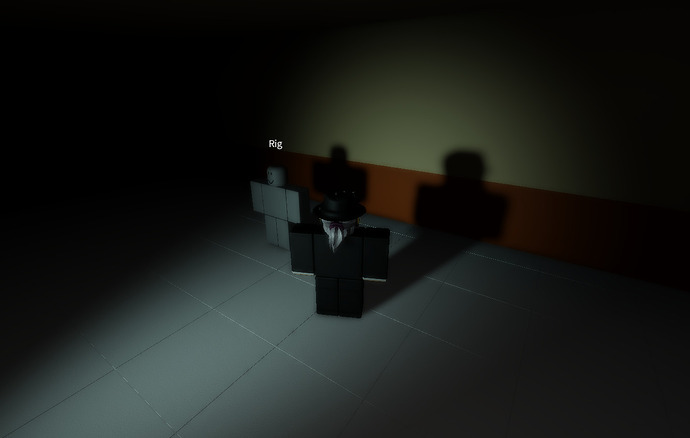
Roblox Arise Shadow Hunt Codes March 2026 18 New Codes Available Roblox Arise Shadow Hunt Codes . Gotham S Shadow Codes Wiki World Update June 2026 MrGuider Roblox Gothams Shadow Codes . How To Remove Shadows In Roblox Studio 2025 YouTube . How To Enable Realistic Shadows Roblox Studio YouTube . Player S Shadow Didn T Show Up In First Person Game Design Support 2 690x438


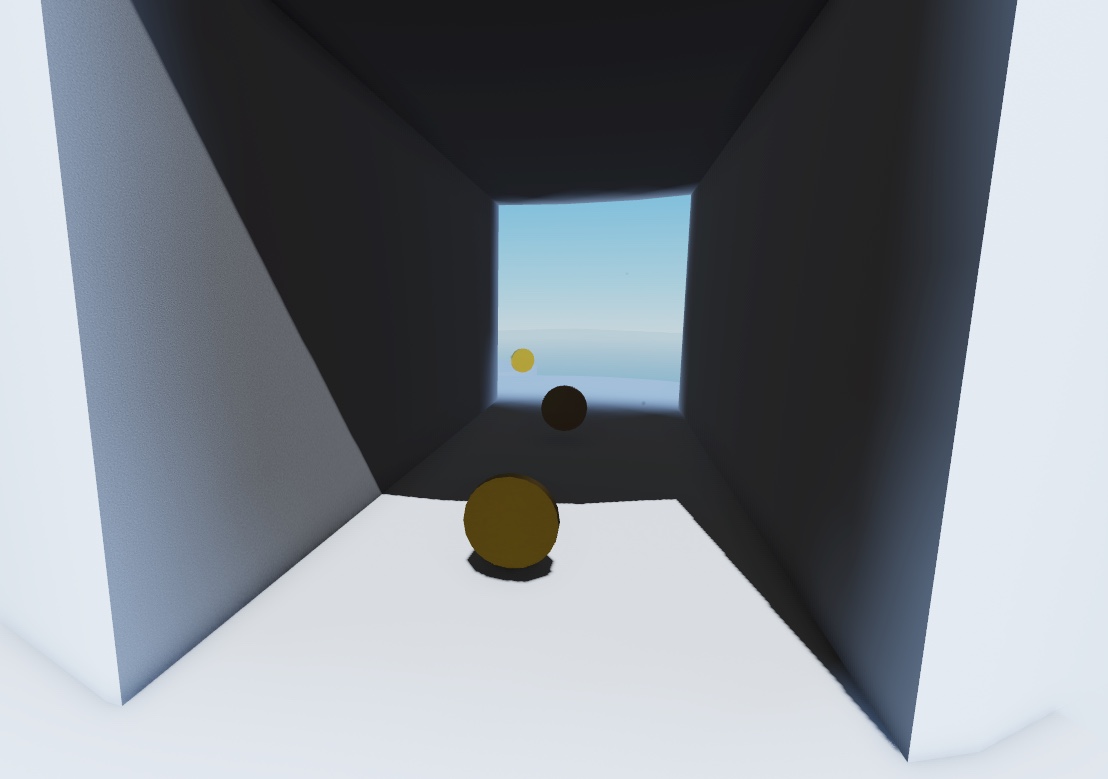


How To Remove Shadows In Roblox Studio Disable Shadows YouTube . ROBLOX Shadows By Eleqtra On DeviantArt Roblox Shadows By Eleqtra D89sqdz Fullview . Customize Global Lighting Roblox Creator Hub Custom Shadows . Prepare For 2026 With Roblox Trends TikTok Img. How To Make Shadow In Roblox No Longer Working YouTube




Disable Player Shadows Scripting Support Developer Forum Roblox 2 1024x715 . NEW HOW TO GET SHADERS ON ROBLOX IN 2026 WORKING YouTube . Shadow Piece Codes 1 Hours June 2026 Try Hard Guides Roblox Shadow Piece A Silver Helmeted Avatar Is Performing A Circular Slash Attack With A Curved Cutlass Creating A Large White Energy Arc On A Sandy Beach 781x439 . Definitive Guide To Roblox 2026 TM 07169 AU 19 60 Football Heaven TM 07169 Definitive Guide To Roblox 2026 . Roblox 2026 Logo REVEALED New Color New Look YouTube Maxres2



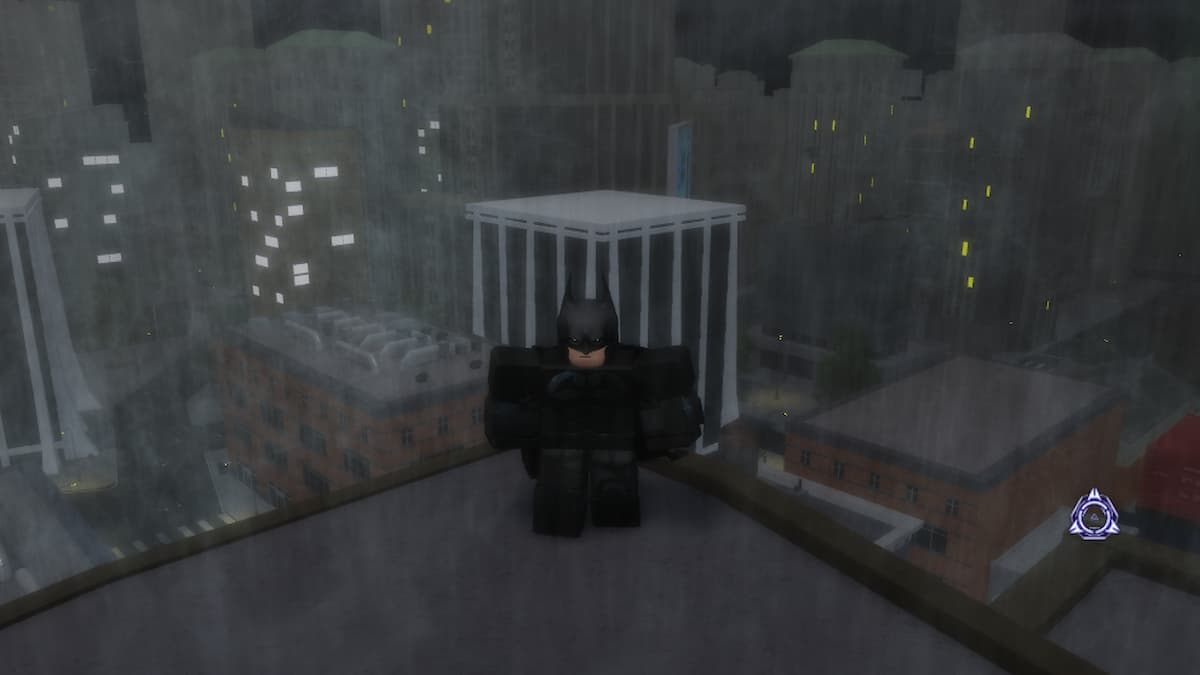

Roblox 2026 NEW LOOK The Biggest Update Ever YouTube Maxres2 . Roblox In 2026 Play On Roblox NoFilter. How To Add People Roblox Easily Your 2026 Guide . Gotham S Shadow Codes World Update June 2026 Try Hard Guides Roblox Gothams Shadow Standing On A Roof As Rain Is Thrashing Down . Roblox New 2026 Logo Roblox Reels Humbled Gamer Facebook Media

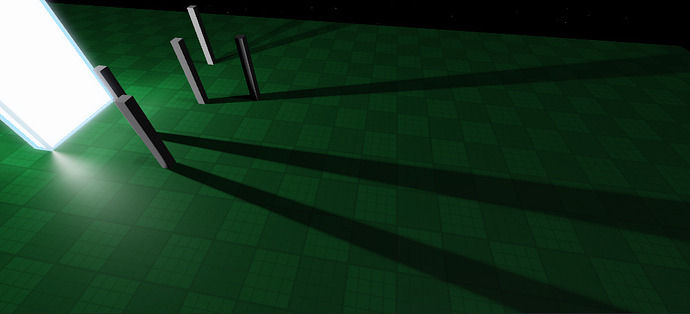


ROBLOX IN 2026 YouTube Hqdefault . Realistic Soft Adaptive Shadows Showcase Native Roblox 2 690x314 . Roblox 2026 New Logo REVEAL First Look At The Future Shorts YouTube Oar2 . 2026 Shades Roblox Item Rolimon S NoFilter. How To Publish A Game On Roblox In 2026 Roblox YouTube


How To Manually Change Seasons In AC Shadows Gamer Tweak Sorcerer Tycoon Codes Roblox.webp. Shadows 2026 Details. ROBLOX EM 2026 VAI MUDAR TUDO YouTube . Shadows 2026 Master YouTube . 20 Facts About Shadow Roblox Doors YouTube



15 Game Roblox Horror Terbaik 2026 15 Game Roblox Horror Terbaik 2026 Paling Seram And Bikin Deg Degan 7f944699ce . How To Make Detailed Shadows Roblox Tutorial YouTube . Roblox 2026 YouTube Oar2 . Into The Shadows Roblox Full Walkthrough YouTube