Navigating the vast world of PC gaming can be an expensive endeavor especially for busy US gamers balancing jobs families and life. With game prices often topping 60 game sharing on platforms like Steam offers a clever solution to expand your library without breaking the bank. This comprehensive guide dives deep into Steam Family Sharing explaining exactly how it works its benefits and any limitations you should be aware of. We will cover step by step setup processes troubleshooting common issues and offering pro tips to maximize your shared gaming experience. Whether you are looking to share your favorite cozy titles with a partner or introduce friends to your massive collection understanding Steam game sharing is a must. This resource is designed for the average gamer aged around 36 who values smart spending and efficient gaming to relax build skills or socialize with friends after a long day. Discover how to unlock more gaming fun for less this month.
How do I set up Steam Family Sharing to share my games with friends or family?
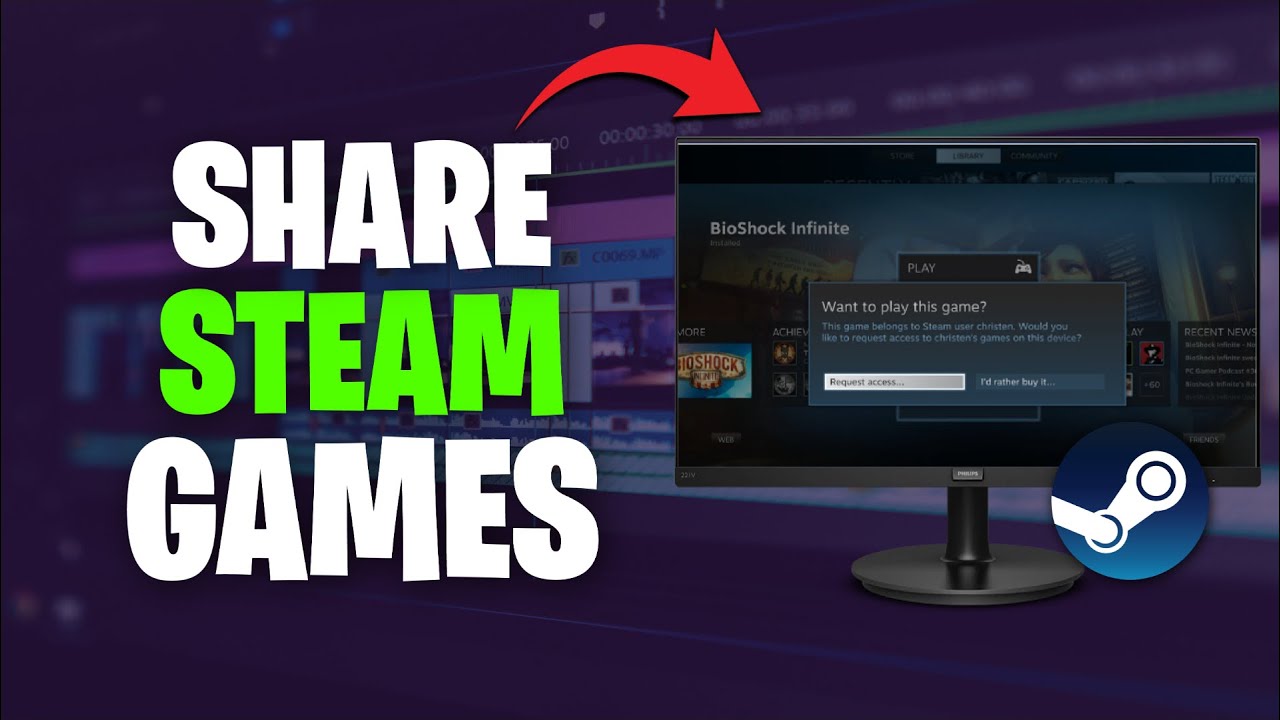
Setting up Steam Family Sharing is straightforward. First, log into your Steam account on the computer you wish to authorize. Go to 'Steam' > 'Settings' > 'Family & Sharing,' then check 'Authorize Library Sharing on this computer.' Select the specific accounts that have logged in on that PC and that you wish to grant access to your library. The chosen accounts can then log in on the authorized computer and access your games.
What are the limitations of Steam Family Sharing, such as simultaneous play and game eligibility?
The main limitation is that only one person can use a shared library at a time; if the owner plays any game, the borrower is kicked off. Not all games are shareable, especially those requiring third-party accounts or subscriptions. DLC and in-game items are generally not shared. Also, any bans for cheating or fraud incurred by a borrower will apply to the library owner's account.
Can I share my Steam games with someone in a different country?
Yes, you can share your Steam games with someone in a different country, provided there are no region-specific restrictions on the particular game. The critical factor is that the computer they are using must be authorized by your Steam account for Family Sharing. As long as the device is authorized and the game is available in their region, geographical distance is not a barrier.
What happens if a friend gets a VAC ban while playing one of my shared games?
If a friend receives a VAC (Valve Anti-Cheat) ban or any other game ban while playing a game from your shared library, your Steam account, as the library owner, will also be penalized. This means you will also receive a VAC ban for that specific game and possibly others, preventing you from playing VAC-secured games. This is why it's crucial to only share your library with trusted individuals.
Can I access my shared Steam library in Offline Mode?
Yes, once a game from a shared library has been installed and played at least once online, you can usually access it in Steam's Offline Mode. However, for the initial installation, any major updates, or if the owner's library access has been temporarily revoked, an internet connection may be required for verification before you can launch the game in offline mode.
How many devices and accounts can I authorize for Steam Family Sharing?
You can authorize Steam Family Sharing on up to 10 different devices at a time. Additionally, you can share your game library with a maximum of 5 other Steam accounts. It's important to manage these authorizations carefully through your Steam settings, regularly reviewing and revoking access from any devices or accounts you no longer wish to share with for security reasons.
Why isn't a specific game appearing in my shared Steam library?
There are several reasons why a specific game might not appear in your shared Steam library. It could be that the game requires a third-party account or subscription (like Uplay or Rockstar Social Club), which makes it unshareable. Free-to-play games are also not shareable. Furthermore, the game might have specific regional restrictions or the developer/publisher may have explicitly opted it out of Family Sharing. Always check the game's store page for any specific sharing disclaimers.
In the bustling world of 2026, where 87% of US gamers regularly dedicate an average of 10+ hours a week to their favorite titles, balancing an extensive game library with real-life commitments like jobs and family can feel like an impossible quest. PC gaming, while incredibly rewarding, often comes with a hefty price tag for new releases. But what if there was a way to share the joy, explore new worlds, and save some cash without sacrificing your personal gaming experience? Enter Steam Family Sharing, a feature designed precisely for this modern gamer dilemma. This isn't just about cutting costs; it's about fostering community, introducing loved ones to your favorite adventures, and ensuring every dollar you spend on gaming delivers maximum value. As mobile gaming continues its dominance and social play trends skyrocket, enabling easy access to games for your trusted circle becomes increasingly vital.
For the average gamer, around 36 years old, who values relaxation, skill-building, and social interaction in their limited free time, Steam Family Sharing is a game-changer. It helps address common pain points like getting the most out of existing purchases, making game recommendations for limited playtime, and simply expanding your options without constant new buys. This guide will walk you through everything you need to know about sharing your Steam library, from initial setup to navigating its nuances, empowering you to unlock a world of shared gaming fun responsibly and efficiently.
What Exactly is Steam Family Sharing and How Does It Work?
Steam Family Sharing is a feature that allows you to share your Steam game library with family members or close friends, granting them access to play games from your collection without purchasing them separately. Think of it like lending out a physical game disc, but digitally. When you authorize a device and a Steam account for sharing, the borrower can install and play any eligible game from your library. The magic happens through Steam's client, which manages access rights, ensuring a streamlined and user-friendly experience.
The core principle is simple: your games are linked to your account, but you can extend temporary access to others. This means a new game you bought could be enjoyed by your partner, or your kids could dive into your collection of indie gems. It's a fantastic way to broaden gaming horizons for everyone involved, especially for households looking to maximize their entertainment budget.
How Do I Set Up Steam Family Sharing Step-by-Step?
Setting up Steam Family Sharing is straightforward. Here's a clear, numbered guide to get you started:
- Log into your Steam account on the computer you wish to authorize.
- From the Steam client, click 'Steam' in the top-left corner, then navigate to 'Settings' (or 'Preferences' on Mac).
- In the Settings window, select the 'Family & Sharing' tab.
- Check the box labeled 'Authorize Library Sharing on this computer'.
- Below this option, you will see a list of eligible accounts that have previously logged into Steam on that specific computer. Tick the box next to the account(s) you want to grant access to your library.
- The authorized user (borrower) can now log into their Steam account on that same authorized computer and access your shared library. They will see your games listed under 'Shared Library' in their Steam client.
It's important to remember that sharing is tied to both the specific computer and the specific user account. If the borrower wants to play on a different PC, you'll need to authorize that machine as well, up to a maximum of 10 devices and 5 accounts.
What Are the Key Limitations of Steam Game Sharing I Should Know About?
While incredibly useful, Steam Family Sharing isn't without its limitations, which are crucial for every gamer to understand before diving in. These rules are in place to balance convenience with fair use:
- One Player at a Time: Only one person can access a shared library at any given moment. If the owner starts playing any game from their library, the borrower will receive a notice and be given a few minutes to either purchase the game or quit playing. This is the most significant limitation for many households.
- Not All Games Are Shareable: Some games, particularly those that require a third-party key, subscription, or an additional account (like Uplay or Rockstar Social Club titles), cannot be shared. Games restricted by region may also be unshareable.
- DLC and In-Game Items: Borrowers generally cannot access the owner's DLC unless they purchase it themselves. Similarly, in-game items, cosmetics, or currency purchased by the owner are usually not transferred with the shared library.
- Regional Restrictions: If the shared game has different regional restrictions, it might not be playable by a borrower in a different region.
- Bans Are Shared: This is a critical point. If a borrower cheats or commits fraud while playing one of your shared games, your account will also be penalized, potentially receiving a VAC ban or other restrictions. Always share with trusted individuals!
Understanding these limitations ensures you have realistic expectations and can avoid potential frustrations or security risks.
Can I Play Games Simultaneously with a Shared Steam Library?
No, unfortunately, simultaneous play from a single shared library is not possible. This is one of Steam Family Sharing's most notable restrictions. If the owner of the library logs on and starts playing *any* game from their library, the borrower who is currently playing a shared game will be given a few minutes to exit the game or purchase their own copy. This applies even if the owner starts playing a game that isn't part of the shared library. The system prioritizes the library owner's access. This design helps prevent situations where multiple people could indefinitely access a single copy of a game simultaneously, ensuring fair usage for publishers and developers.
Are All Steam Games Shareable Through Family Sharing?
No, not all Steam games are eligible for Family Sharing. While the vast majority of titles are shareable, there are specific categories of games that are typically excluded. These include:
- Games that require a separate third-party account, subscription, or CD key for activation (e.g., Uplay, Rockstar Social Club games).
- Free-to-play games, as they are already free for anyone to access.
- Games that require a specific operating system not supported by the borrower's machine.
- Games with region-specific restrictions that do not align with the borrower's location.
- Titles explicitly opted out by the developer or publisher.
Before relying on sharing a specific game, it's always a good idea to check if it has any third-party DRM or special activation requirements that might prevent sharing. For most mainstream single-player and many multiplayer titles, sharing works seamlessly, offering great value for money and expanding your gaming circle's options.
What About DLC and In-Game Purchases When Sharing Games?
When you share your Steam library, the core games are accessible, but downloadable content (DLC) and in-game purchases generally are not directly shared. Here's a breakdown:
- DLC: A borrower cannot play DLC that you own for a shared game unless they purchase that DLC themselves. If they buy the base game later, their DLC purchases would then be tied to their own copy.
- In-Game Purchases: Any microtransactions, in-game currency, cosmetic items, or other purchases made within a game are tied to the purchasing account. These are not transferred or accessible to a borrower playing your shared version of the game.
- Exceptions: Very rarely, some developers might configure their games to allow certain DLC to be shared, but this is an exception rather than the rule. Always assume DLC and in-game items are not shareable.
This policy means that while your friends or family can enjoy the base game, they will need to make their own investments if they want to experience additional content or personalize their gameplay.
Troubleshooting Common Steam Family Sharing Issues
Even with careful setup, you might encounter bumps along the road. Here are solutions to common Steam Family Sharing problems:
- Shared Library Not Appearing: Ensure the computer is authorized in your 'Family & Sharing' settings. The borrower must have previously logged into Steam on that specific machine for their account to appear as an option for authorization. Also, make sure the borrower is logging into their own Steam account, not yours.
- 'Game is Unavailable' Message: This usually means the library owner is currently playing a game (any game) from their library, or the game itself is not eligible for sharing (e.g., requires a third-party key). Confirm the owner isn't actively gaming, and check the game's store page for sharing restrictions.
- Revoking Access: If you need to stop sharing with someone or on a specific device, go back to 'Steam' > 'Settings' > 'Family & Sharing'. You can de-authorize specific computers or users from this panel.
- Network Issues: Ensure both the owner and borrower have a stable internet connection for the initial authorization and to launch shared games.
When in doubt, a quick restart of the Steam client for both parties often resolves minor glitches. Always double-check your authorization settings first.
Is Steam Family Sharing Secure? Protecting Your Account
Security is paramount in online gaming, especially when sharing access to your digital library. Steam Family Sharing is designed with security in mind, but it also relies on your vigilance:
- Trust is Key: Only authorize devices and accounts of people you implicitly trust. Remember, any bans or penalties incurred by a borrower due to cheating or fraudulent activity will apply to your account, the library owner's.
- Two-Factor Authentication: Always use Steam Guard (Steam's 2FA) on your account. This adds an extra layer of protection, making it much harder for unauthorized access even if someone gets your password.
- Device Authorization: You have full control over which devices are authorized. Regularly review your authorized devices in your 'Family & Sharing' settings and revoke access from any devices you no longer recognize or trust.
- Password Hygiene: Encourage anyone you share with to also practice good password hygiene and enable Steam Guard on their own accounts.
By following these best practices, you can enjoy the benefits of Steam Family Sharing with peace of mind, knowing your account and digital assets are well-protected.
Staying Current with Steam Sharing Trends and Updates
Steam's features, including Family Sharing, are subject to occasional updates and policy changes. It's smart to stay informed by checking the official Steam news announcements or the Steam support pages regularly. As the gaming landscape evolves, especially with trends like social gaming and mobile integration, platforms adapt. For instance, recent data indicates a significant increase in social gaming, with many US gamers engaging with friends via Discord and in-game communication. Steam Family Sharing inherently supports this trend by making it easier for friend groups or family units to experience games together, even if they don't all own a copy. Keep an eye out for potential future enhancements that might allow for more flexibility or new ways to connect your gaming circles.
What are the latest US gaming trends that make Steam sharing even more appealing?
Current US gaming trends significantly bolster the appeal of Steam Family Sharing. For one, the rise of 'cozy games' and cooperative experiences has seen a surge in popularity, perfectly aligning with the desire to share fun, low-stress games with partners or family. Secondly, with many gamers balancing demanding careers and family life, 'value for money' remains a top priority; sharing games stretches entertainment budgets further. Lastly, the prevalence of multi-platform households (PC, console, mobile) means gamers are looking for flexible ways to access content, and sharing on PC provides a solid hub for collective play and discovery.
As we navigate 2026, the average gamer's lifestyle emphasizes efficient entertainment, making smart features like Steam Family Sharing not just a convenience, but an essential tool for maximizing fun and minimizing expenditure in a world where gaming is a primary source of relaxation and social connection.
What is the minimum age to use Steam Family Sharing?
There is no official minimum age listed by Steam specifically for Family Sharing, but a Steam account requires users to be 13 years or older. Since Family Sharing involves authorizing another Steam account, the borrower must have a valid Steam account, meaning they should be at least 13 years old. For younger users, parental supervision and careful consideration of game content are always advised.
Can I share my games with friends who live in a different country?
Yes, you can share your Steam library with friends in different countries, provided there are no region-specific restrictions on the game itself. The primary limiting factor is the authorized device; the friend would need to log into their Steam account on a computer that you have specifically authorized for sharing. As long as the game is available in their region and on an authorized device, distance is not an issue.
What happens if I forget to deauthorize a computer for sharing?
If you forget to deauthorize a computer, that device will remain authorized to access your library whenever the permitted account logs in. This isn't inherently problematic unless an untrusted person gains access to that computer and the borrower's Steam account. For security, it's a good practice to periodically review and revoke access from any devices you no longer use or trust under your Steam Family & Sharing settings.
Can I play a game on my shared library offline?
Once a game from a shared library has been installed on an authorized computer, you can typically play it in Steam's Offline Mode. However, for the initial installation and periodic verification, an internet connection is required. If the owner's library access is revoked or the owner starts playing, the game might require an online check before it can be re-accessed in offline mode.
Are there any hidden fees or costs associated with Steam Family Sharing?
No, there are no hidden fees or costs directly associated with using Steam Family Sharing itself. It is a free feature provided by Steam. The only potential 'cost' could be the opportunity cost if you're unable to play your own games because someone else is using your library, but there are no monetary charges for enabling or utilizing the feature.
Harnessing the power of Steam Family Sharing is a smart move for any gamer looking to maximize their entertainment budget and share the fun with trusted individuals. It offers a practical solution to expand your gaming horizons without constant new purchases, fitting perfectly into the lives of busy adults who value relaxation and connection through gaming. Remember to prioritize trust and security, and you'll unlock a wealth of shared adventures.
What's your biggest gaming challenge when it comes to balancing enjoyment and budget? Comment below!
Steam Family Sharing allows library sharing with trusted accounts. Up to 5 accounts on 10 authorized devices. Simultaneous play is limited. Some games and DLC may not be shareable. Cheats or bans on shared games affect the owner.
35



Epic Games Store Vs Steam Market Share Epic Games Store Vs Steam Market Share Statistics 2026 . Steam Sales 2026 Calendar Full Dates Best CD Key Deals AllKeyShop Com All Steam Events 2026. How Can You Share Steam Games With Your Friends Easily Hero . Epic Games Store Vs Steam Market Share Statistics 2026 Epic Games Store Vs Steam Market Share . How To Share Games On Steam 2026 Steam Family YouTube



Como Jogos No Steam Jogos 2026 How Share Games Steam . The Most Played Games On Steam For 2026 So Far Cheat Code Central Most Played Games Steam 2026 2048x1167 . How To Game Share Steam 2026 FAST GUIDE YouTube . How Can You Share Steam Games With Your Friends Easily . C Ch T O Steam Family Sharing Chia S Game Steam KAMIKEY Steam Families 1

:max_bytes(150000):strip_icc()/A2-ShareGamesonSteam-annotated-a1ba8f230df443db94a7be5654e92cb9.jpg)


5 Game Steam Yang Patut Kamu Mainkan Di Bulan Januari 2026 . How To Share Games On Steam With Steam Family 2026 Guide YouTube . How Can You Share Steam Games With Your Friends Easily A2 Annotated . My Current Steam Wishlist 2025 2026 New Games YouTube . Jadwal Lengkap Steam Sale 2026 Gamer Siap Siap Berburu Diskon Diskon Game Steam 1265 711


How Can You Share Steam Games With Your Friends Easily Steam Force Other To Quit Game In Shared Account How Steam Handles Game Conflicts In Family Sharing 1536x864 . Can You Play Steam Games On Xbox Consoles GAMES IN 2026 . How To Share Steam Games And Play Together 2026 Step By Step YouTube . How Can You Share Steam Games With Your Friends Easily . How Can You Share Steam Games With Your Friends Easily Steam Share Games





How Can You Share Steam Games With Your Friends Easily . Steam Sale 2026 Key Dates You Need To Know LevelUpTalk Steam Sale Schedule 2026 08 27 2025 7c35051e 2c22 4093 96f1. How To Share Games On Steam 2026 Step By Step YouTube . Rekomendasi Game Steam Spring Sale 2026 Wajib Beli Steam Awards 2025 Winners 1024x576 . Upcoming Games 2026 Full Video Game Release Calendar Beebom 2026 Games Release Schedule


Steam Saves Location And Game Data Guide 2026 Thinglabs Store Home Share11 . Steam Next Fest 2026 And Beyond All The Dates Details And Everything. Steam Sales 2026 Calendar Full Dates Best CD Key Deals AllKeyShop Com All Steam Events 2026 1.webp. Steam Sales 2026 Here S The Schedule For The First Half Of The Year 912cr476 . The Most Wishlisted Game Of Steam Next Fest 2026 Has Been Revealed It Steam Next Fest 2025


Steam Top 10 Releases Of 2023 By Full Game Revenue R Asmongold Steam Top 10 Releases Of 2023 By Full Game Revenue V0 . 2026 Game Releases Full Upcoming Games Calendar Release Dates PS5 Game Releases Full Calendar Release Dates Main . How Can You Share Steam Games With Your Friends Easily How To Share Games On Steam . How Can You Share Steam Games With Your Friends Easily . How To Share Games On Steam With Your Friends Sharing Games With Friends On Steam